Inactivity alert for elderly parents
Our app runs silently in the background on your parent’s
smartphone, monitoring normal daily device activity.
If the phone hasn’t been touched for 12 hours,
you get an immediate inactivity alert.
Our app functions silently in the background of your parent’s smartphone, tracking standard daily activity — such as screen unlocks or movement — without the need for intrusive hardware, cameras, or constant GPS tracking.
Quiet Elder Monitoring
Privacy First
We prioritize senior safety over constant surveillance.
By monitoring only device usage patterns, we offer families a quiet reassurance that their loved ones
are active and well, while fully preserving the parent’s independence and privacy.
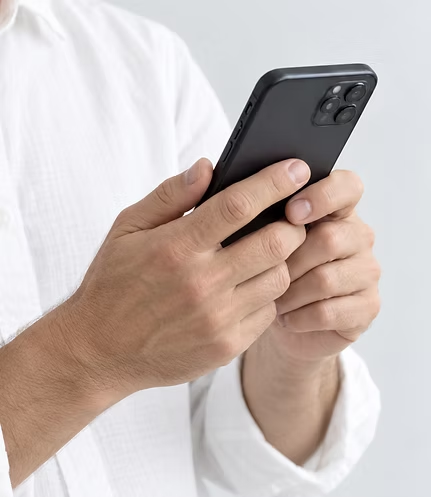
Two phones.
One simple connection.
No daily check-ins.
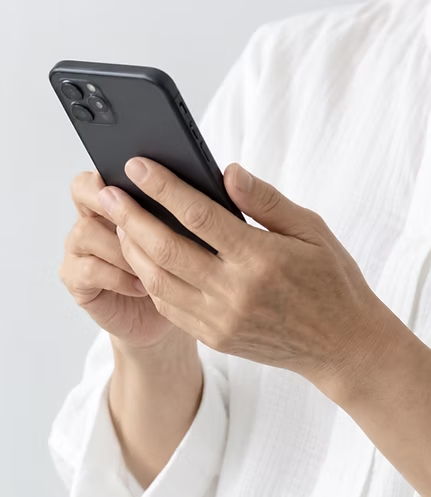
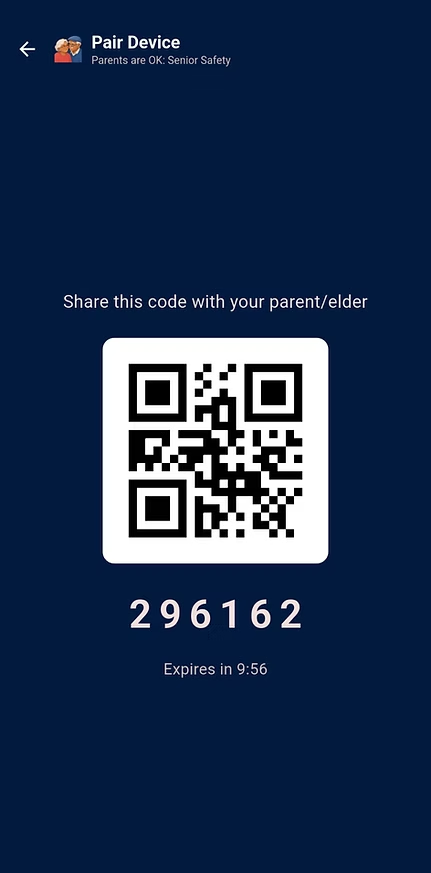
Install Parents are OK on your phone and your parent’s phone, connect the two devices, and choose the settings that make sense for your family.
Support
Independent Living
Perfect for seniors who want to maintain their autonomy safely while giving their family reassurance.
DOWNLOAD NOWYOUR PHONE:
Download
Parents are OK
↓
Choose Guardian
PARENT’S PHONE:
Download
Parents are OK
↓
Choose Parent
CONNECT THEM
Use the pairing code
↓
DONE
What happens on the parent’s phone
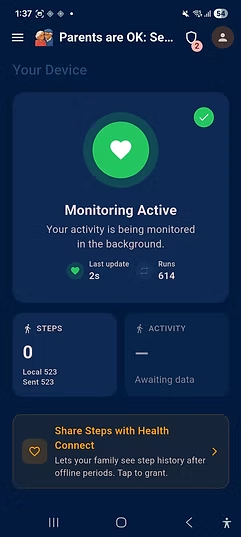
Your parent continues using their phone as usual.
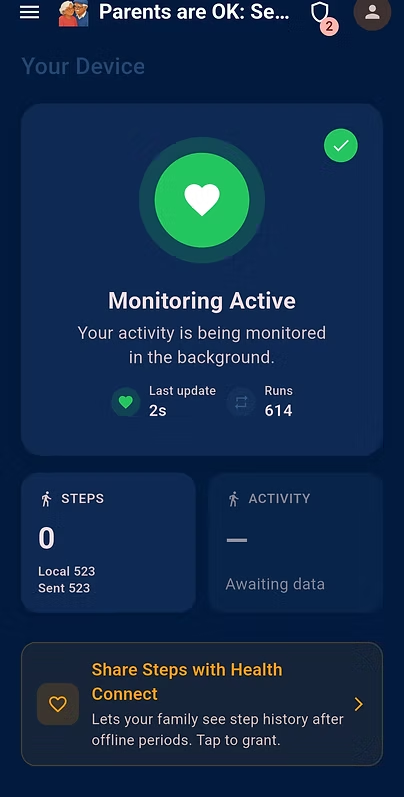
Parents are OK runs quietly in the background, looking for signs of normal phone activity.
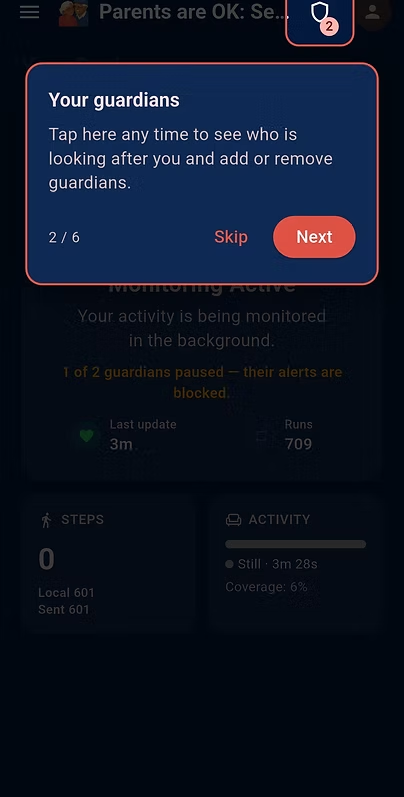
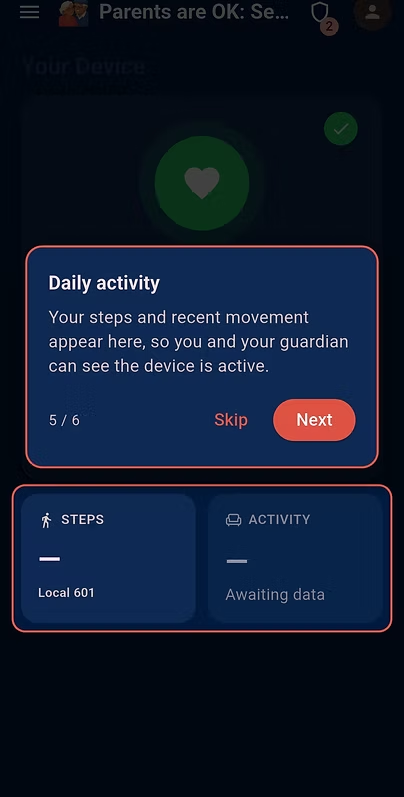
They can see that monitoring is active, who is connected as a guardian, and whether anything needs attention.
No location tracking. No cameras. No microphone.
No new daily routine.
Nothing much changes for them.
What
the guardian sees
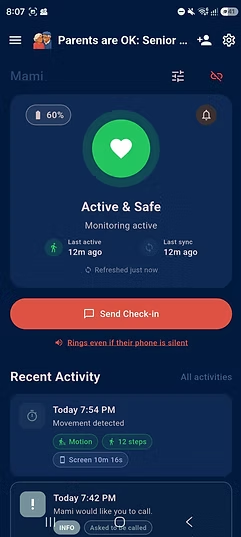
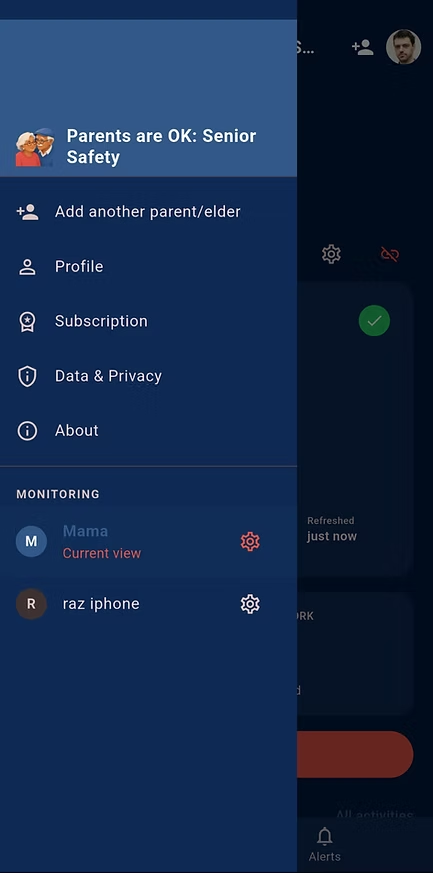
The guardians get a simple overview of the parent’s phone status.
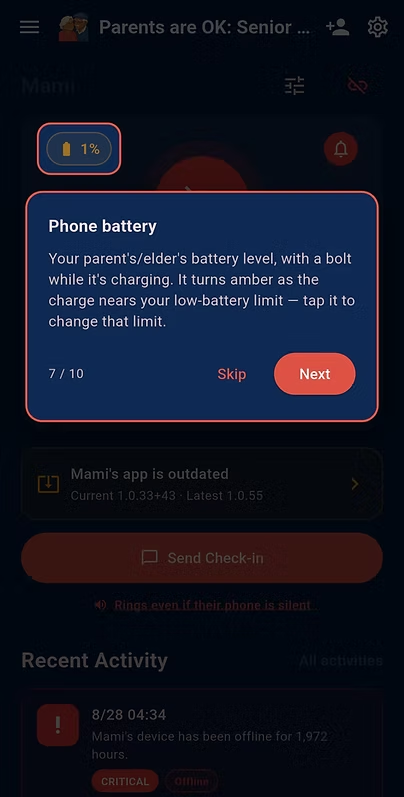
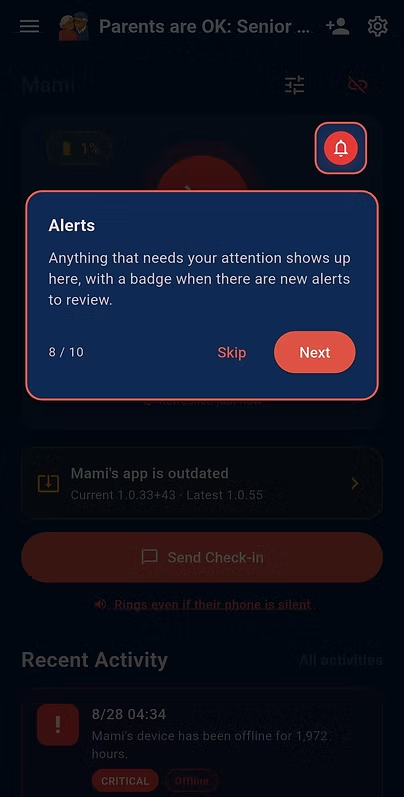
See recent activity, battery level, connection status and alerts in one place.
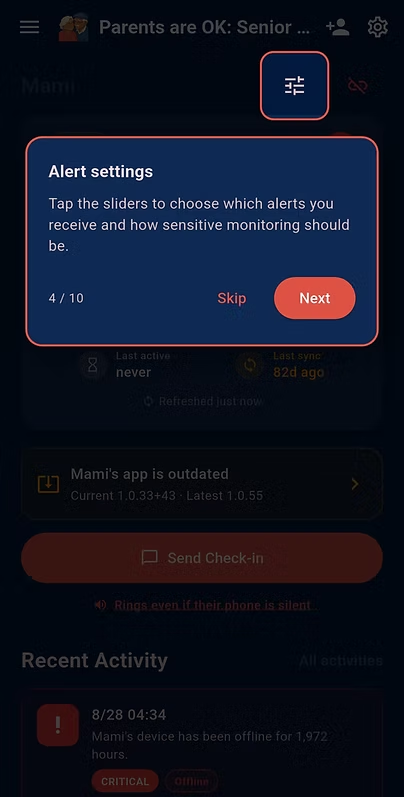
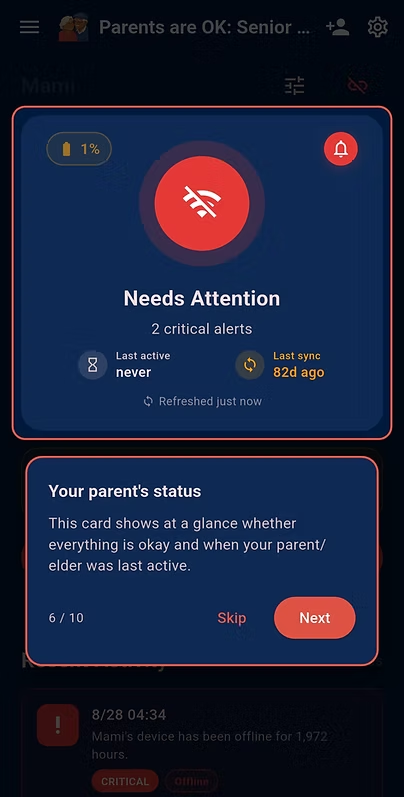
If something looks unusual, such as prolonged inactivity, a low battery or the phone going offline, the app lets you know.
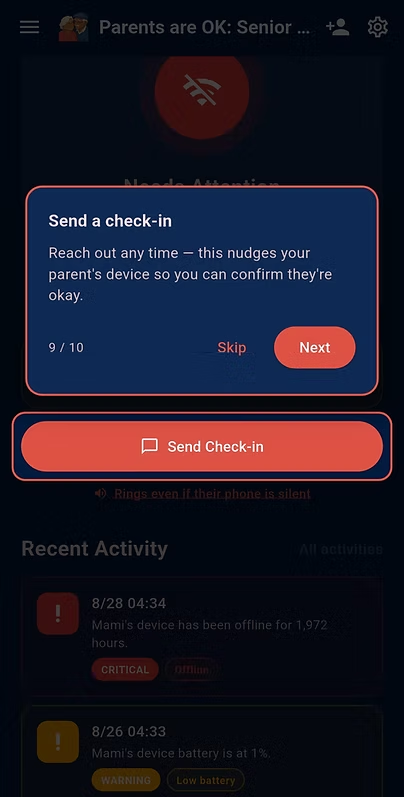
You can then check in, call, or simply wait, depending on the situation.
You get useful signals when something changes.
Give yourself the gift of peace of mind.
DOWNLOAD NOWWhen something
needs attention
Make it work
for your family
How monitoring works
Our app runs silently in the background on your parent’s smartphone,
monitoring normal daily device activity like unlocking the screen or moving the phone.
If no activity is detected for 12 hours, you get an immediate inactivity alert.
Zero Hassle for Seniors
No confusing buttons or wearables. They simply use their phone normally while the app works quietly in the background.
100% Private & Secure
We believe in safety, not surveillance. There is no GPS tracking, no microphone access, and no location sharing.
Intelligent Monitoring
You will know if something seems unusual based on real-world usage patterns without having to call every day.
Shared Responsibility
Support for several family members ensures that the responsibility of care is shared effectively across guardians.
Setting Up the Widgets
and the “Call Me When You Can” Button
A step-by-step guide for Parents are OK on iPhone and Android
This guide shows how to add the Parents are OK tiles to your home screen and your parent’s, and how to change their settings.
It takes a few minutes.
The best moment to do it is during a visit, when the two of you can try everything together.
The tiles at a glance
| Tile | On your parent’s phone | On your phone |
| Status tile | Says “Ioana knows you’re OK” and when it was last confirmed. | Shows each parent’s status, when their phone was last active, and its battery. Red means something needs a look. |
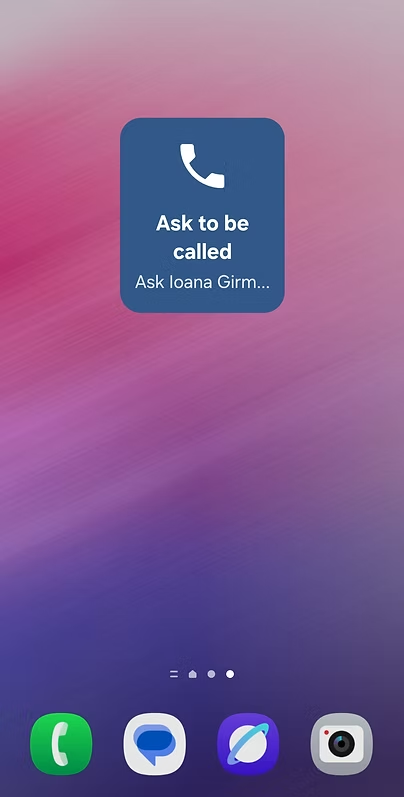
| Call me tile / check-in tile | The Call me tile: one tap asks you to call. | The check-in tile: tap, then tap again to send your parent a check-in. |
In the phone’s widget list, the Call me tile and the check-in tile both appear as “Reach out”. It is the same widget: on a parent’s phone it asks for a call, on yours it sends a check-in.
Sizes
| Tile | Sizes |
| Status tile | Small 2×1, Wide 4×1, Large 4×4 |
| Reach out (Call me / check-in) | Small 2×1, Medium 2×2, Wide 4×1 |
For a parent, we suggest the Call me tile in Medium 2×2: big enough to read and tap easily. You can add both tiles, and each one stays up to date on its own.
How to add a tile
On an iPhone
- Touch and hold an empty spot on the home screen until the apps jiggle.
- Tap Edit in the top corner, then Add Widget. On older iPhones, tap the + button.
- Search for “Parents are OK” and tap it.
- Swipe to the tile you want and tap Add Widget.
You can add the tiles to the Lock Screen too: touch and hold the Lock Screen, tap Customize, then tap the space under the clock.
On an Android phone
- Touch and hold an empty spot on the home screen.
- Tap Widgets.
- Find Parents are OK, then touch and hold a tile and drag it into place.
The shortcut in the app
On the app’s main screen, tap the small widget icon, or the card that says “See how they’re doing at a glance”. Choose the tile and its size, then tap Add to home screen.
Choose who the Call me tile asks
If your parent has more than one guardian, they can choose who the tile calls.
Touch and hold the tile, tap Settings (or Edit on iPhone), and pick one person or Everyone.
Set for one person, the tile says “Call me when you can, Ioana”.
Set for everyone, it simply says “Call me when you can”.
Your parent can keep one tile for each of you.
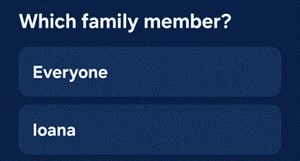
Choosing who the Call me tile asks.
Check-in tile settings
On your phone, touch and hold the check-in tile and open its settings.
You can choose:
which parent it checks on, if you follow more than one, and
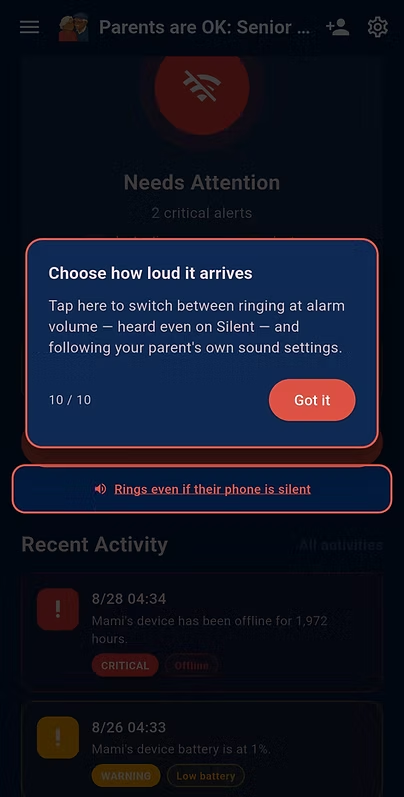
what happens when their phone is on silent: use the app’s setting, ring anyway, or stay silent
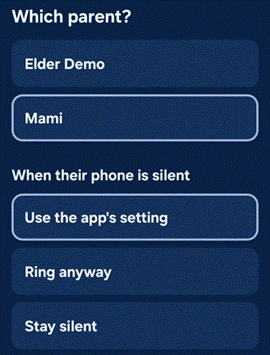
The check-in tile settings.
The status tile can follow one person too: touch and hold it and choose Edit.
When a call request arrives
You get a “Call request” notification with your phone’s usual sound, vibration or silence.
Tap it to open your parent’s alerts.
Every request is listed there, with how long ago it came.
Once you have called, tap the circle next to it to mark it as resolved.
If you open the app instead, your parent’s card shows “Asked to be called”, and the request also appears in Recent Activity.
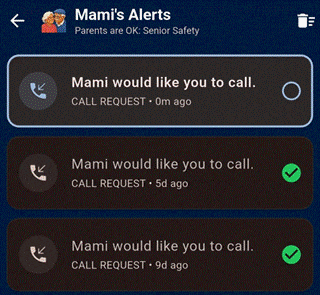
The alerts list: the new request waiting, the earlier ones marked as resolved.
On your parent’s side, the button rests for 15 minutes after each request, and the app shows when they can ask again.
If the phone has no connection, the tile turns orange and says “Couldn’t send — tap to try again”.
If the widget won’t appear on a Samsung phone
The app tells you when your phone couldn’t add the widget.
Usually, the home screen layout is locked.
Touch and hold an empty spot on the home screen,
open Settings, turn off Lock Home screen layout, then go back to the app and tap Retry.
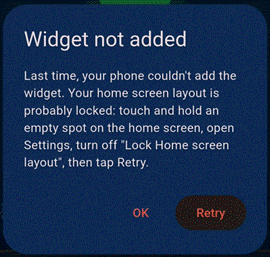
The message you see when the home screen layout is locked.